Start with one file in PikPak
If your file is already in the cloud, choose the device download guide. If you cannot find a downloaded file, choose the download location guide. To save your first file, follow the steps below.
Save a file step by step · Choose your device · Download to your device · Find downloaded files
- Open Cloud Download in the web drive and add a magnet link or torrent file for content you have permission to use.
- When cloud saving finishes, open the file to play it. This does not yet save a copy on your device.
- Choose Download to Device when you need a local copy. On iPhone or iPad, use the web drive first to add a link.
Cloud saving and device downloads
Save to the cloud
Bring a file from a link into your PikPak account. Completing this step does not put a copy on your phone or computer.
Download to your device
Copy a file from PikPak to your phone or computer. Check the destination folder and available space on that device.
Choose where to start
Computer
Open the web drive to work with files without installing a separate app.
Android
Use the PikPak app to access and play your files. Menu positions may differ by app version.
iPhone and iPad
The iOS app cannot add download links. Save the link through the web drive, then open the file in the app using the same account.
Official help for adding links on iOS
Open PikPak Web Drive1. Save a file to PikPak
Start with a file you created or have permission to use.
- Sign in to PikPak Web Drive. Use the same account in the app if you want to access the file there.
- For a magnet link or torrent file, open Cloud Download. Paste the link or select the torrent file.
- Choose Create Now and wait for the task to finish. Find the saved file in your file list.
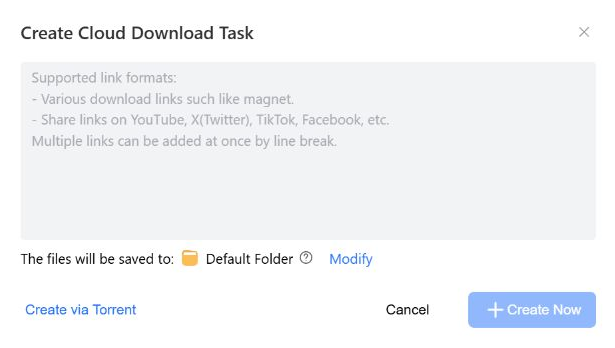
Upload a file from your device
Open Upload at the top and choose Upload Files, then select your file. Use Upload Folder to upload a folder. Check your file list after the upload finishes.
A file may not be ready to play or download until the cloud task has finished.
Official help: saving links2. Organize files in folders
Give folders clear names before your file list gets busy.
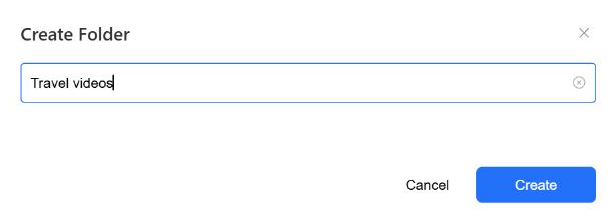
- Choose Create Folder above the file list. Choose a descriptive name, such as “Travel videos”.
- Select a file and open Move from its file menu.
- Choose the destination folder and complete the move. Open that folder to check the result.
- Use the rename action when you want a clearer filename. Keep the file extension unchanged.
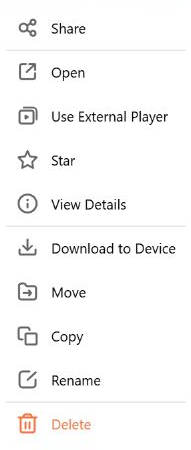
On the web, right-click a file to open its actions. Move changes its folder, Rename changes its name, and Download to Device saves a local copy.
Moving a file into a folder is different from moving it to Trash. Check the selected action and destination.
3. Play a saved video
Open a video after its cloud save has finished.
- Open the video from your file list or a folder.
- Check the picture and sound. Use the quality or subtitle controls offered by the player if you need them.
- If playback fails on the web, try the PikPak app with the same account. Supported video menus on Android also offer playback in another installed player.
Playback depends on the file format, audio codec and browser. The same file may behave differently across devices.
Official help: video playback4. Download to your device
Download a local copy when you want to use a file without an internet connection.
- On the web, right-click the file and choose Download to Device. In the app, use the file’s download action.
- Start the download and check its progress. On the web, also check your browser’s download list.
- When it finishes, open the saved file’s location. Check the download folder configured in the browser or app.
- Check the completed file’s name and size in your device’s download list or saved location, then open it. If you need offline access, check that it also opens with the network connection turned off. On iPhone or iPad, check in-app offline files in the app; export a file first if you need it in another app.
The web version cannot download a whole folder. Download its files individually or use a PikPak desktop app.
Offline storage inside an app can differ from exporting to your device’s Photos or Files app. Check the location or export option if you need the file in another app.
Find downloaded files on your phone or PC
A file appears on your device after its download finishes. Saving it to the cloud alone does not create a local copy.
PC web browser: Find the file in your browser’s download list. Check the download folder in browser settings for its actual location.
Android: Check completed files in the PikPak app’s download list. The latest PikPak app lets you choose an SD card as the download location on Android 11 or later. PikPak official help: SD card downloads · Checked 2026-09-30
iPhone and iPad: Offline saving inside the app may differ from exporting to Photos or Files. To use a file in another app, check the export option and destination.
If something does not work
The file is missing in the app
Check that the web and app use the same account, refresh the file list and confirm that the save task has finished.
The link will not save
Check that the link still works, the source is available and your account has storage and transfer quota left. The source itself can delay or prevent a cloud save.
The cloud task finished, but downloads are slow
Cloud saving and downloading to your device are separate transfers. Check your connection, remaining transfer quota and the conditions of your account.
I cannot find a downloaded file
Open its location from the browser’s download history or PikPak’s download list. A phone download does not necessarily appear in Photos.